
PDF as a QR code: menu, instructions or price list to scan
Menu, user manual, price list, programme booklet: many documents have long been available as PDFs. Put a QR code next to them, and guests or customers have the file on their phone with a single scan. To make sure this still works a year from now, it is worth taking a quick look at the details.
When a PDF behind the QR code makes sense
- Instructions and data sheets on devices, packaging or in the warehouse – long, but rarely needed.
- Price lists and programmes that change several times a year.
- Forms and information sheets to download, for example at the reception of a medical practice or the town hall.
- Internal documents for the team that not everyone should see.
For content that should be easy to read on a phone – such as a menu – a dedicated page is often more pleasant than a PDF you have to zoom into. More on that below.
The most important question: where is the file stored?
A QR code cannot contain a PDF, only a link to it. If the file sits in a private cloud folder or on your website, the printed code depends on exactly that address: if the folder is moved, the sharing settings are changed or the website is rebuilt, the code leads nowhere.
With a dynamic QR code, you upload the file directly. The code only contains a short address, and you can replace the file behind it at any time – the printed pattern stays the same. For price lists and programmes, that is the decisive advantage.
What to look out for when uploading
- Keep the file size small: compress the images in the PDF. People scanning in a shop or at the station do not always have fast internet.
- Design for the phone: large font, a single column, no tiny tables.
- Meaningful file name and title: “Price-list-2026.pdf” instead of “scan_0042.pdf” – the name appears when the file is downloaded.
- Direct download or info page? You can have the file downloaded immediately or first show a page with title, description and size. The info page builds trust when the file is larger.
Not every document is meant for everyone
A QR code often hangs in plain sight on a wall or lies on the table. For internal or exclusive documents, there are therefore additional protection options:
- Password for the file or the whole code – share it separately from the code.
- Expiry date: after that, the file can no longer be accessed, which is handy for time-limited offers.
- Download limit: after a set number of downloads, that is it.
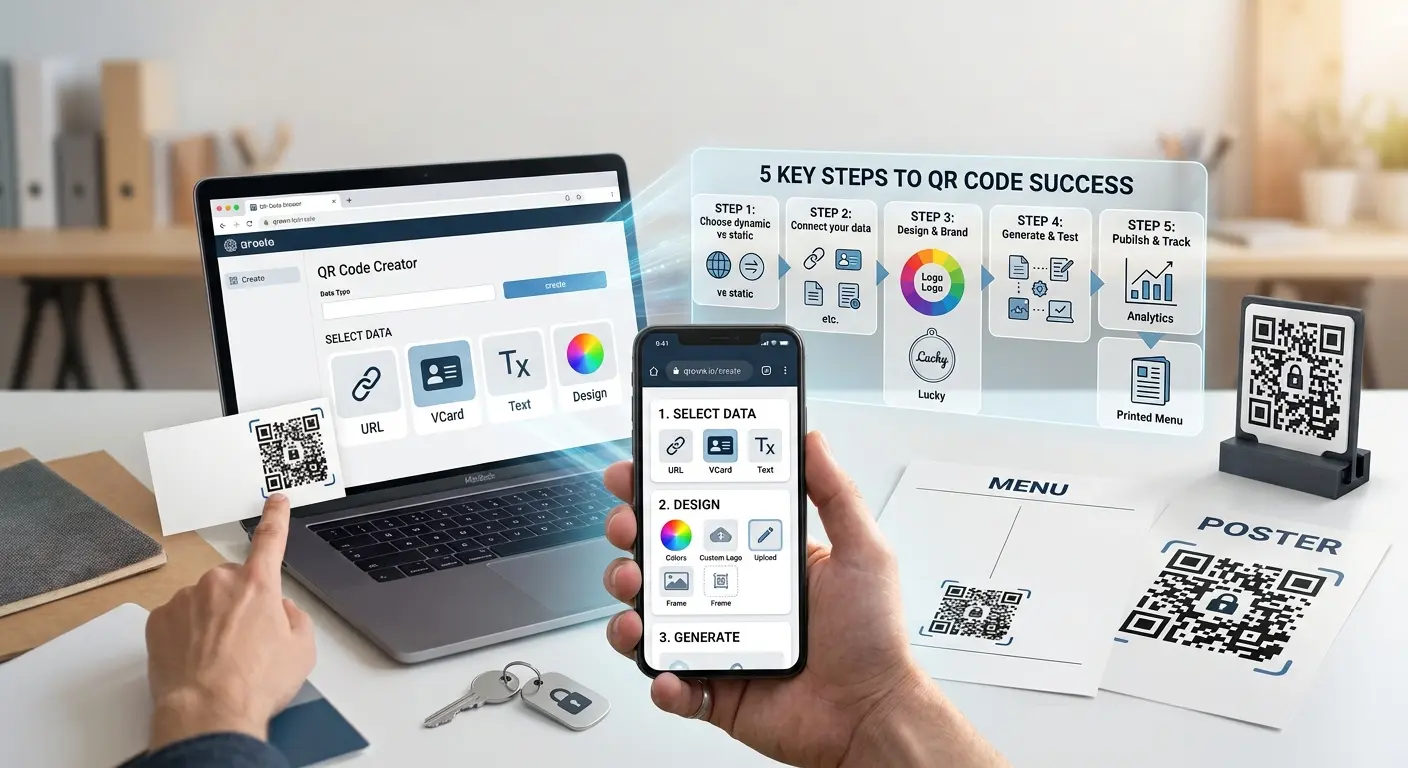
How to create a PDF QR code with QRown
- In the generator, choose the type File upload and upload the PDF.
- Set the title, description and, if you like, a password, expiry date or download limit.
- Design, download and print the QR code.
Uploaded files are checked during upload and stored encrypted. Besides PDFs, images, Office files, audio, video and ZIP archives also work. If the document changes, you simply choose the new file when editing – the code stays the same.
And the menu?
A menu as a PDF works, but on a phone it is often tedious: zooming, swiping, searching. A digital menu as a dedicated page adapts to the screen and can be maintained dish by dish. If you already have a PDF, File upload is the quickest start. If you are planning a menu you will keep updating anyway, go straight for the digital menu – the type of a code cannot be changed after it has been created.
Conclusion
Sharing a PDF via QR code is quickly done. For the code to last, the file should not depend on a folder or a website, but be replaceable at any time. With a password, expiry date and download limit, you also decide who gets the document and for how long.
Put this article into practice with QRown:
File upload