
Surveys via QR code: feedback, sign-ups and market research for every business
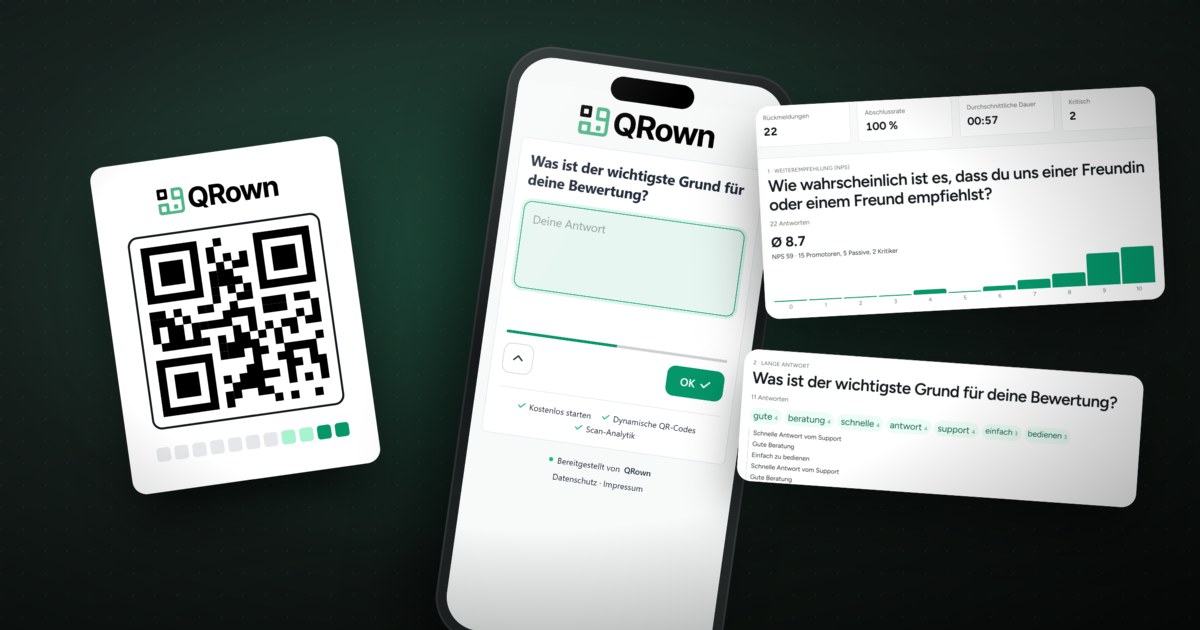
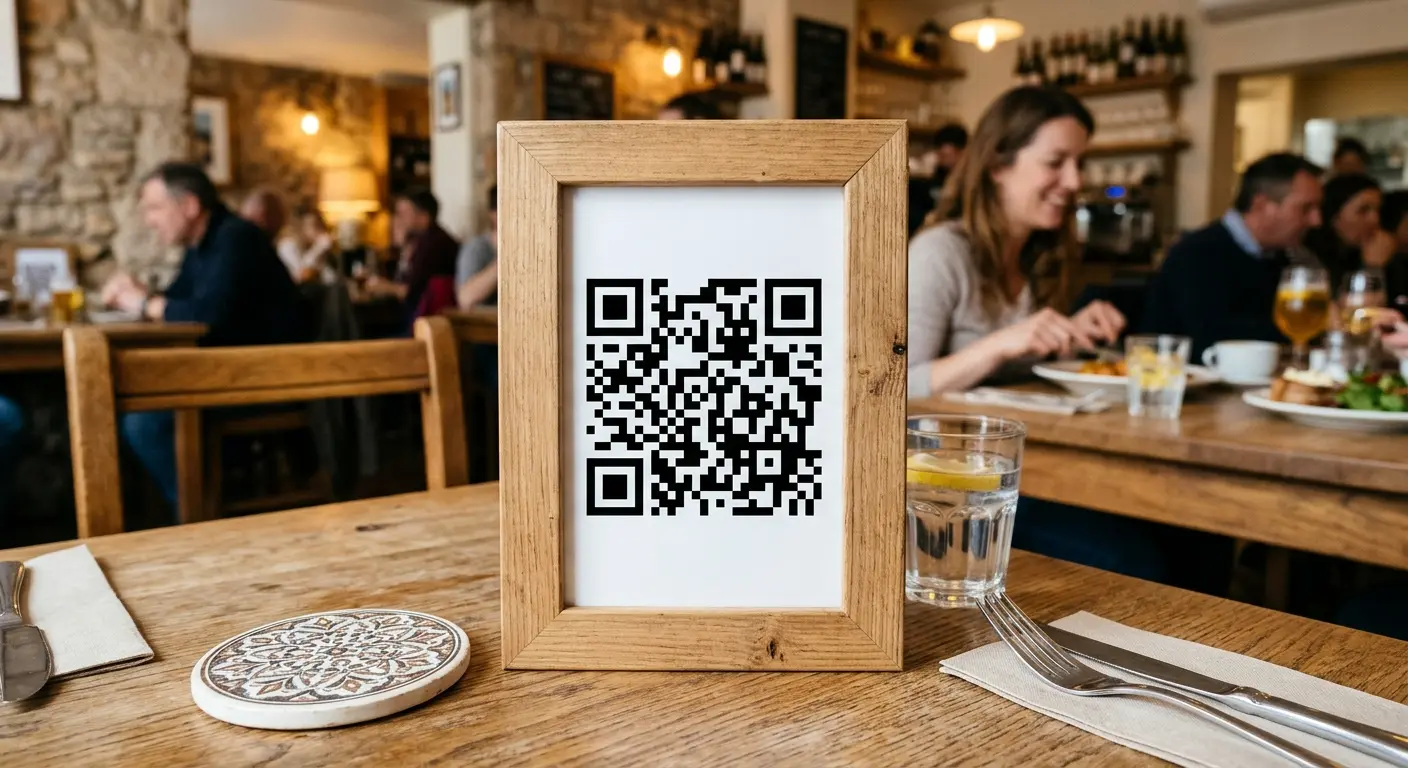
A QR code goes wherever people are: on a poster, on packaging, on an invoice, at a trade fair stand, in a training room, in the office or in an email signature. Anyone who scans it lands straight in your survey – no app, no account, one question per screen. That turns a survey into a tool for almost any business task: measuring satisfaction, asking your team, collecting sign-ups, testing products. This guide shows the most important use cases with sample questions and what matters when it comes to structure, analysis and data protection.
Why one question per screen gets more answers
On a phone, a long form feels like work. A survey that shows one question after another feels like a short conversation instead: large buttons, a simple choice moves on by itself after the tap, and a progress bar shows how far there is to go. Still, keep the survey short – three to five questions are enough for quick feedback.
Seven use cases with sample questions
The matching question type is given in brackets.
1. Customer satisfaction and recommendation
For retail, services, practices, workshops or hospitality: the code sits at the checkout, comes with the invoice or hangs in the waiting room.
- “How satisfied were you with our service?” (stars or smileys)
- “How likely are you to recommend us?” (recommendation, 0 to 10)
- “What should we improve first?” (long answer, optional)
NPS in brief: anyone who gives 9 or 10 counts as a fan (promoter), anyone who gives 0 to 6 as a critic (detractor), 7 and 8 are neutral. The Net Promoter Score is the share of fans minus the share of critics and lies between −100 and +100. Example: 50 % fans and 20 % critics give an NPS of 30.
2. Employee survey, anonymous
A notice in the break room or a link in the team chat is all it takes. If you ask for neither names nor contact details, the survey stays anonymous – say so right on the welcome screen.
- “How satisfied are you with your work overall?” (scale from 1 to 5)
- “How satisfied are you with … the team, leadership, working hours, training?” (matrix)
- “What would you change?” (long answer)
3. Feedback on events, courses and training
A code on the last slide, the name badge or the handouts collects feedback while the impression is still fresh.
- “How do you rate … the programme, the organisation, the venue, the catering?” (matrix)
- “How useful was the course for your work?” (scale)
- “Which topic would you like next time?” (choice with “Other”)
4. Sign-ups and contact requests
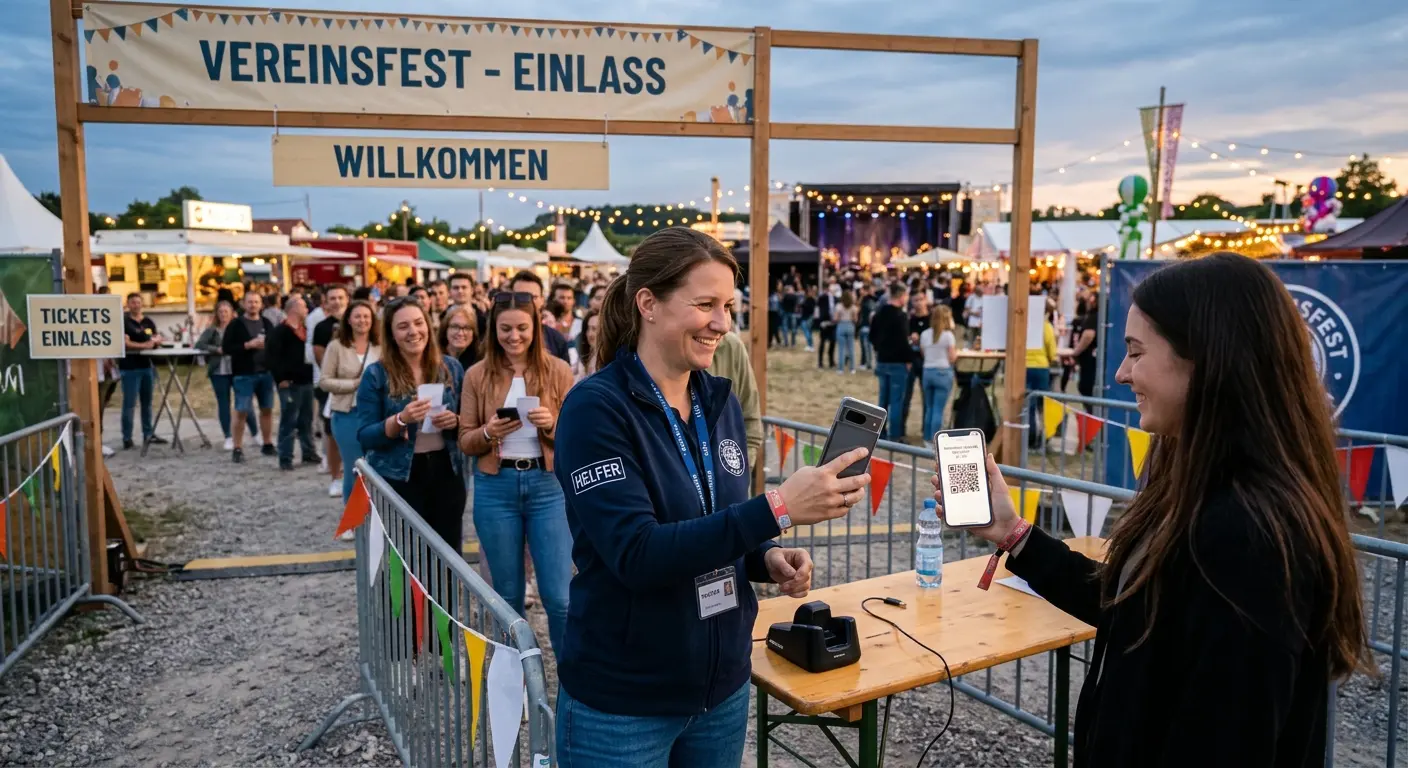
At a trade fair stand, on a flyer or in the shop window, you collect sign-ups and leads – for a course, a test drive or a consultation.
- “Your details” (contact details: first name, last name, email, phone)
- “When suits you best?” (date and time as a preferred appointment)
- “I agree that my details may be stored so that you can contact me.” (consent with a link to the privacy policy)
Important: this is a request, not a binding booking. You get back in touch afterwards with the confirmation.
5. Product and market research
A code on the packaging, the prototype or the sample collects opinions exactly where the product is in people’s hands.
- “Which packaging appeals to you most?” (picture choice)
- “Distribute 100 points: what matters to you in this product?” – price, quality, design, sustainability (distribute points)
- “What is the most you would pay for this product?” (number or slider)
With a ranking (“Put these ideas in your order”), you find out what should come first.
6. Quiz and competition
A quiz gets people to take part – at the stand, in the shop window or on a poster. Correct answers earn points, and if you like, people see their result at the end.
- “How many cantons does Switzerland have?” – 20, 26, 30 (choice with a correct answer)
- “How can we notify you?” (contact details)
- “I accept the terms of participation.” (consent)
A voucher code can appear on the final screen. So that nobody passes on a screenshot, a clock runs next to it and the background moves – that way staff can recognise a genuine display. If you like, only one entry per device is possible.
7. Clubs and organisations
A members’ survey before the annual general meeting, wishes for the annual programme or feedback on the club party: the code in the club newsletter or on the noticeboard reaches everyone.
- “Which events would you like next year?” (choice, multiple answers possible)
- “Put these projects in your order.” (ranking)
- “Will you come to the annual general meeting?” (yes/no)
The question types at a glance
- Screens: welcome, statement, end.
- Choice: choice (also with “Other”), picture choice, yes/no, dropdown, ranking.
- Rating: stars, smileys, scale, recommendation (NPS), slider, matrix, distribute points.
- Text and numbers: short and long answer, number, date, time.
- Contact and files: email, phone, contact details, address, consent, signature, photo or file.
Branches, placeholders and multiple end screens
With branches (skip logic), the survey adapts to the answers. An example: anyone who gives 2 stars or fewer gets the follow-up question “What can we do better?”, everyone else moves straight on. Questions can be shown or skipped depending on an answer. Placeholders pick up earlier answers in the text, such as the option chosen. With multiple end screens, each group gets its own ending – for example depending on the quiz score.
For ratings, you can also set an alert threshold: responses below it are marked as critical and appear at the top of the daily summary email.
One code per location, campaign or channel
Any number of codes can point to the same survey. So create a separate QR code for each branch, room, table or channel and give it a clear name such as “Station poster” or “Trade fair flyer”. In the analysis, you filter by code and see whether the poster brings in more responses than the flyer, or whether one branch does better than another. Because the codes are dynamic, you can change the questions at any time without reprinting.
The analysis
Every question appears as a chart, ratings with their distribution, recommendation with the NPS. You can see how many people were still there at each question, and so spot where people drop out. Filters by code, time period and language narrow down the results, you can view individual responses, and CSV export takes everything into your spreadsheet. If you like, a summary arrives by email once a day.
Data protection
- Only ask what you need. Contact details only if you really use them, and then with consent.
- Hosting in Switzerland. QRown does not store IP addresses. To prevent misuse, an anonymised check value is used, which is deleted after two days.
- Retention period. Responses are kept for as long as you set: 1, 3, 6, 12 or 24 months. 30 days before deletion you receive an email so you can save everything as a CSV.
Mistakes to avoid
- Too many questions. Every extra question costs answers. Only ask what you will actually analyse and act on.
- Two questions in one. “How were price and quality?” can’t be answered honestly if one was good and the other bad. Ask separately or use a matrix.
- Leading questions. “How much do you like our new offer?” presupposes the answer. Neutral would be: “How do you rate the new offer?”
- Required questions everywhere. Make only the essentials required, and open questions optional.
- A code without an invitation. A bare QR code gets overlooked. Add what it is about and how long it takes: “Your opinion counts – 3 questions, 1 minute.”
- A reward only for good ratings. Everyone gets the thank-you, otherwise the results are worthless. If you ask for a Google review at the end, show the prompt to everyone, not just the satisfied ones.
- No response. People who give feedback and never hear back won’t take part again. Tell them what you have changed.
- Not testing. Scan the code yourself before printing and go through the whole survey once, with all branches.
How it works with QRown
With QRown, you put your survey together from more than 25 question types or start with a template: “Restaurant guest satisfaction”, “Recommendation (NPS)”, “Event feedback”, “Registration”, “Competition with quiz” and “Employee survey”. You define branches in whole sentences. The survey can be offered in 16 languages, and the phone picks the right one. You’ll find everything else on the page Survey via QR code.
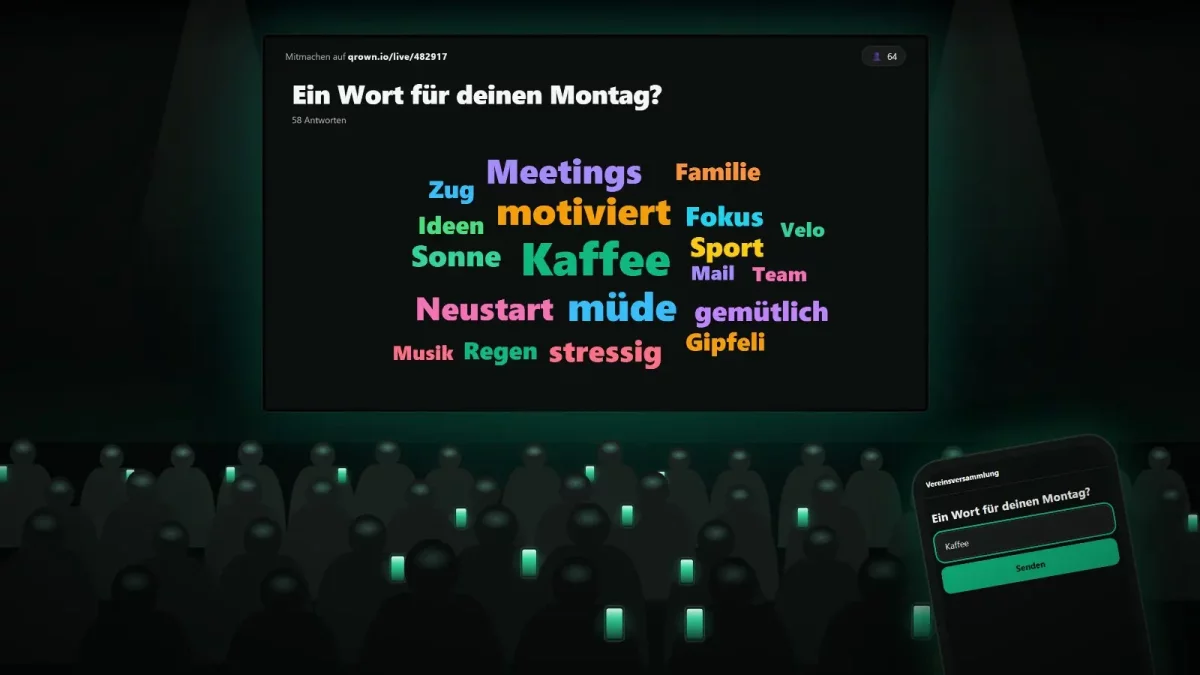
If instead you want people in the room to vote live, with the results on the projection screen – at an annual general meeting, in a workshop or during a talk, for example – QRown Live is the right choice.
Put this article into practice with QRown:
Surveys