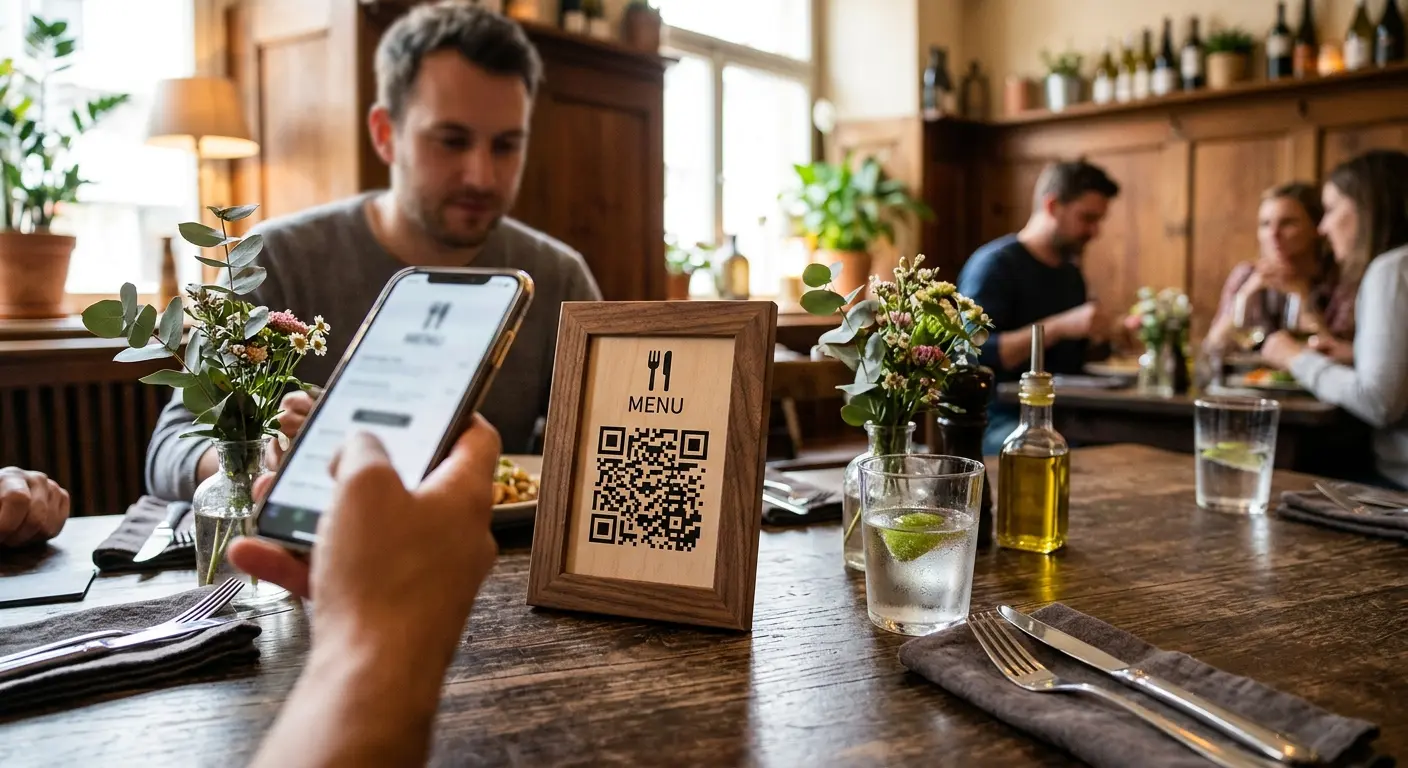

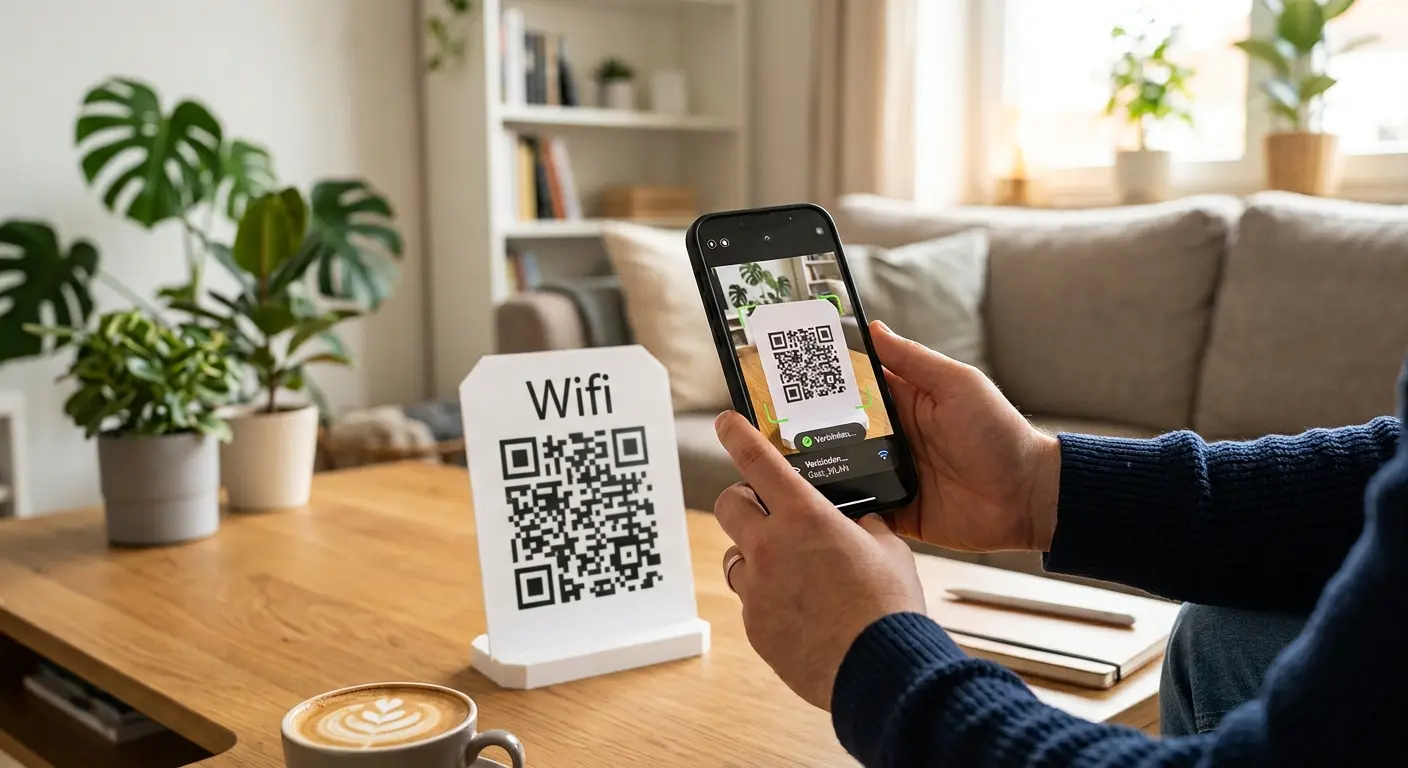
We’ve all been there: A guest asks for the Wi-Fi password, you spell out a random string of uppercase and lowercase letters, numbers, and special characters, and after the third try, the other person is still typing the wrong letter. A Wi-Fi QR code solves this problem: Scan, connect, done—no typing or back-and-forth needed.
How a Wi-Fi QR Code Works
Technically speaking, a Wi-Fi QR code is based on a simple idea: Instead of a web address, it encodes your network’s login information—namely, the network name (SSID), password, and encryption type (usually WPA/WPA2). Modern smartphones automatically recognize this format as soon as the camera app captures the code and immediately offer the option “Connect to Wi-Fi.” No more typing, no more copy-pasting, and no more mixing up “I” and “l” or “0” and “O.”
Get your own Wi-Fi code in just a few steps
- Select the “Wi-Fi” QR code type. In QRown’s QR code editor, you’ll find this type right in the overview.
- Enter the network name and password—be sure to use the correct uppercase and lowercase letters; they must match exactly.
- Specify the encryption—usually WPA/WPA2; older routers sometimes still use WEP or no encryption at all.
- Customize the design: Color and logo help blend the code visually into your brand’s look without compromising its scannability. You can add a logo with a free account.
- Download and place—without an account as a PNG or JPG, with a free account also as an SVG or PDF for printing in any size.
Where a Wi-Fi QR Code Is Especially Useful
- Vacation rentals and hotels: A table sign with a QR code next to the router saves returning guests from having to ask at the front desk.
- Cafés and restaurants: Guests can connect without interrupting staff—especially handy during busy peak hours.
- Offices and coworking spaces: For meetings with visitors, a separate guest Wi-Fi network can be easily shared via a sign.
- At home: A small, laminated code in the hallway saves you from having to dictate the password to family and friends every time they visit.
Static or dynamic—which makes sense?
If the Wi-Fi password rarely or never changes, a simple, static QR code is sufficient, since the login credentials are stored directly in the code. If, on the other hand, you change the password regularly (for example, every few months for security reasons), a dynamic QR code is worth using. You update the access credentials in the background, and the code that’s already been printed and posted remains valid. That way, no one has to reprint the sign just because the password has changed. Keep in mind: a dynamic Wi-Fi code (available with a free account) opens a page showing the network name and password, with a copy button. Connecting automatically only works with a static code.
Security Note
A Wi-Fi QR code makes access easier, but it also makes it accessible to anyone who sees it. For a private home network or an internal company Wi-Fi network, this is usually not a problem. If you want to restrict access (such as for a publicly visible sign), it’s better to set up a separate guest Wi-Fi network with its own isolated network and link only that network via a QR code.
Try it now
Create your own Wi-Fi QR code in less than two minutes—for free and without registration—using the free QR code generator from QRown.
Put this article into practice with QRown:
WiFi QR code