
Here’s how to do it without a second device!
Have you received a QR code in an email, on a website, in a social media app, or in a PDF on your smartphone?
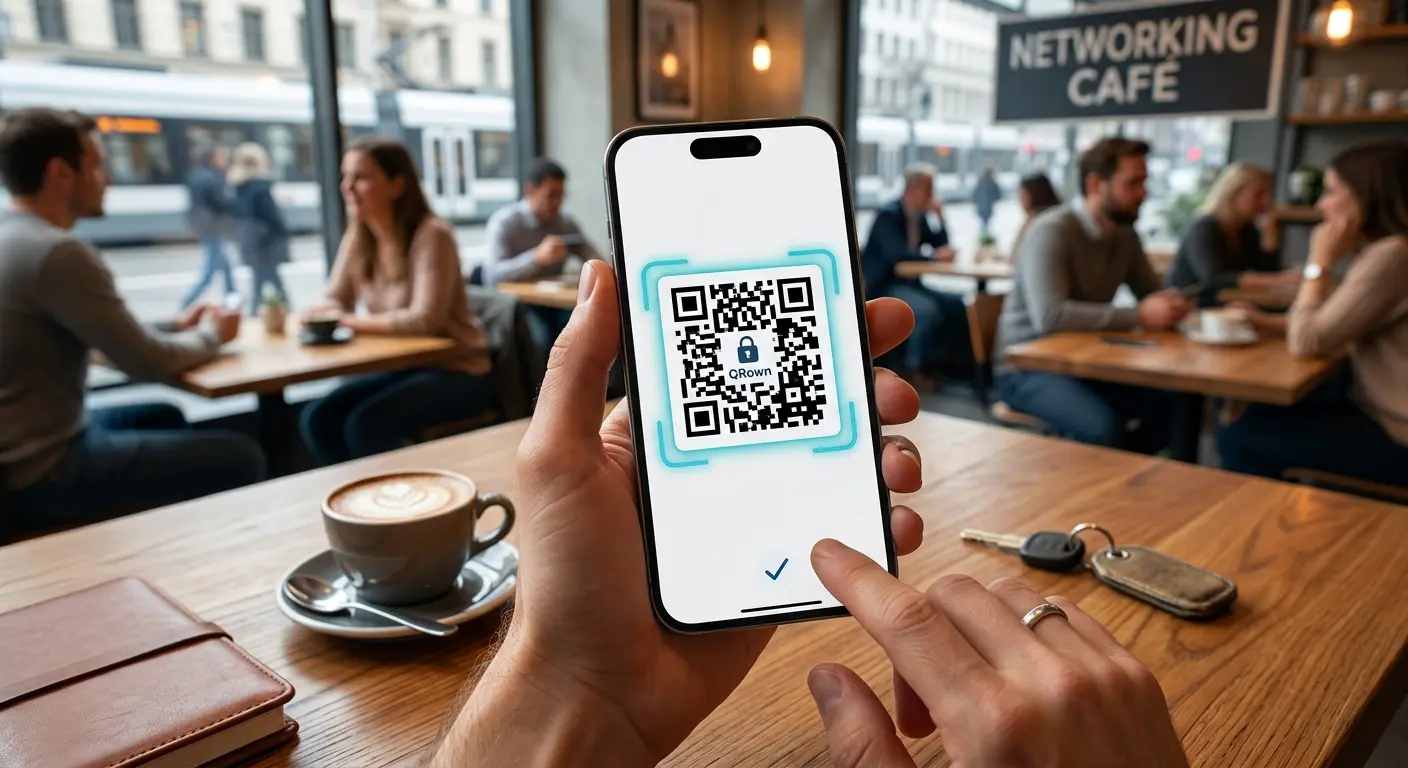
Now you’re facing that typical everyday problem: How do you scan a QR code that’s displayed on the very screen you’re holding in your hand? Looking for a second phone or taking a picture of the code on your computer screen is a hassle.
The good news: Both iOS and Android offer built-in features that let you scan and open QR codes right on your screen—quickly, easily, and without installing any extra apps.
1. Tap the QR code directly in your browser or in an app (the fastest method)
With modern smartphones, you often don’t even need to take a screenshot.
- On an iPhone (iOS): When you see a QR code on a website or in an app, simply press and hold your finger on the QR code image for 1 to 2 seconds. A context menu will open, offering you the option to open the link it contains directly in your browser (e.g., Safari).
- On Android devices (with Google Lens/Circle to Search): On many newer Android devices, you can hold down the Home button to activate Circle to Search. Simply tap directly on the QR code displayed on your screen, and the URL will appear immediately.
2. The Universal Method: Take a Screenshot and Scan It
If holding down the button directly doesn’t work in your app, the tried-and-true screenshot trick will help.
Step 1: Take a screenshot.
Take a screenshot of your current screen showing the QR code:
- iPhone: Press the Volume Up button and the Side button at the same time.
- Android: Press the Volume Down button and the Power button at the same time.
Step 2: Read the screenshot on an iPhone (iOS)
Since iOS 15, Apple has included the Live Text feature, which automatically recognizes QR codes in photos.
- Open the Photos app and select the screenshot you just took.
- Tap the Live Text icon (bottom right; it looks like small lines of text in a frame) or press and hold the QR code in the photo.
- iOS recognizes the link and immediately displays a yellow button. Tap it to open the link.
Step 3: Extract the link from a screenshot on Android (Google Photos / Google Lens)
On Android smartphones, Google Lens automatically reads images.
- Open the Google Photos app and select the screenshot.
- Tap the Google Lens icon at the bottom of the menu.
- Google Lens analyzes the image, immediately recognizes the QR code, and displays the corresponding link. Tap it to open the page.
3. Why don’t I need third-party apps for this?
In the past, you had to download special scanner apps from the App Store or Play Store to use this feature. Today, that’s no longer necessary—and for security reasons, it’s often even advisable. Many free QR scanner apps contain a lot of ads or request unauthorized access permissions. Instead, use your smartphone’s built-in tools.
Conclusion
Scanning a QR code on your own screen is no longer a hurdle. Whether you open the website and long-press the QR code or use the screenshot feature in your photo gallery: In less than three seconds, you’ll reach your destination without needing a second device.