
Testing QR Codes Before Printing: Instructions & Checklist for Error-Free Scans

If you use QR codes on flyers, business cards, posters, or packaging, you expect them to scan instantly and provide a seamless user experience. But once the print run is produced or the PDF is published, you can no longer easily correct errors related to readability, the link destination, or contrast. An unreadable code costs time, advertising budget, and the trust of your target audience.
With this step-by-step guide, you’ll learn what matters when testing QR codes and how to reliably avoid common pitfalls before approval.
Why You Must Check Every QR Code Before Publication
Printed media doesn’t forgive carelessness. If your QR code can’t be scanned after printing, your entire marketing campaign will be ineffective. There are many reasons for scanning problems:
- A print size that’s too small or blurry edges
- Insufficient color contrast with the background
- Invalid or non-mobile-optimized destination URLs
- Insufficient spacing from the rest of the layout
Systematic quality assurance before print approval protects you from costly misprints.
Test Your QR Code Correctly in 6 Steps
1. Multi-Device Check: Scan with Different Smartphones
Don’t rely on a successful scan with your own device. Different smartphone models, camera lenses, and operating systems can react very sensitively to lighting conditions and resolutions.
- Operating System Mix: Be sure to test the code with both Android and an iPhone (iOS).
- Ambient light: Check readability in bright daylight as well as in dim lighting.
- Angle & distance: Don’t just scan the code head-on—also check how it responds when scanned from slightly angled positions.
2. Check the destination URL & mobile usability
A successful scan is useless if the destination disappoints. Therefore, thoroughly check the linked page.
- Does the correct URL open without any error messages (e.g., 404 errors)?
- Is your landing page fully optimized for mobile devices (responsive design)?
- Do buttons, forms, video streams, or PDF downloads work flawlessly?
- Do special features like digital business cards (vCard), email drafts, or phone calls trigger correctly?
3. Perform a test print at a 1:1 scale
A QR code that scans effortlessly on your high-resolution monitor may fail when printed on a small business card.
Therefore, always print the document on paper before approving it—exactly at 100% of the original size. There is no universal minimum size: The more data the code contains (the higher the QR code version), the smaller the individual modules become, and the larger you must print the code.
Practical tip: If in doubt, it’s better to allocate a little more space for the QR code in your layout rather than unnecessarily squishing it.
4. Ensure a quiet zone and color contrast
Smartphones need clear visual boundaries to identify a square as a QR code.
- The quiet zone: There must be a clear protective margin around the code, ideally at least four modules wide. Text, logos, or dividing lines must not touch this area.
- Contrast: A dark code on a very light, solid-color background offers the highest recognition rate. Inverted colors or low contrast (e.g., gray on white or dark blue on black) often result in failed scans.
5. Check the Final Export in the Layout Program
A common error in the workflow occurs during layout creation in programs like Canva, InDesign, or Photoshop. When exporting as a PDF or JPEG, the graphic may be compressed or blurred.
Important: Never test just the originally generated QR code graphic; always test the code in your final PDF or print file.
6. Consider the material and location of use
The substrate also affects scannability:
- Surfaces: Glossy films, metal, glass, or heavily curved packaging cause light reflections and distortions.
- Reading distance: A code on a business card is scanned from a distance of 15 cm, while a large poster is scanned from several meters away. Your code must be scaled proportionally for the expected viewing distance.
Static vs. dynamic QR codes: Protection against typos
If, despite all checks, an error creeps into the web address later on, the type of QR code determines whether the situation can be salvaged.
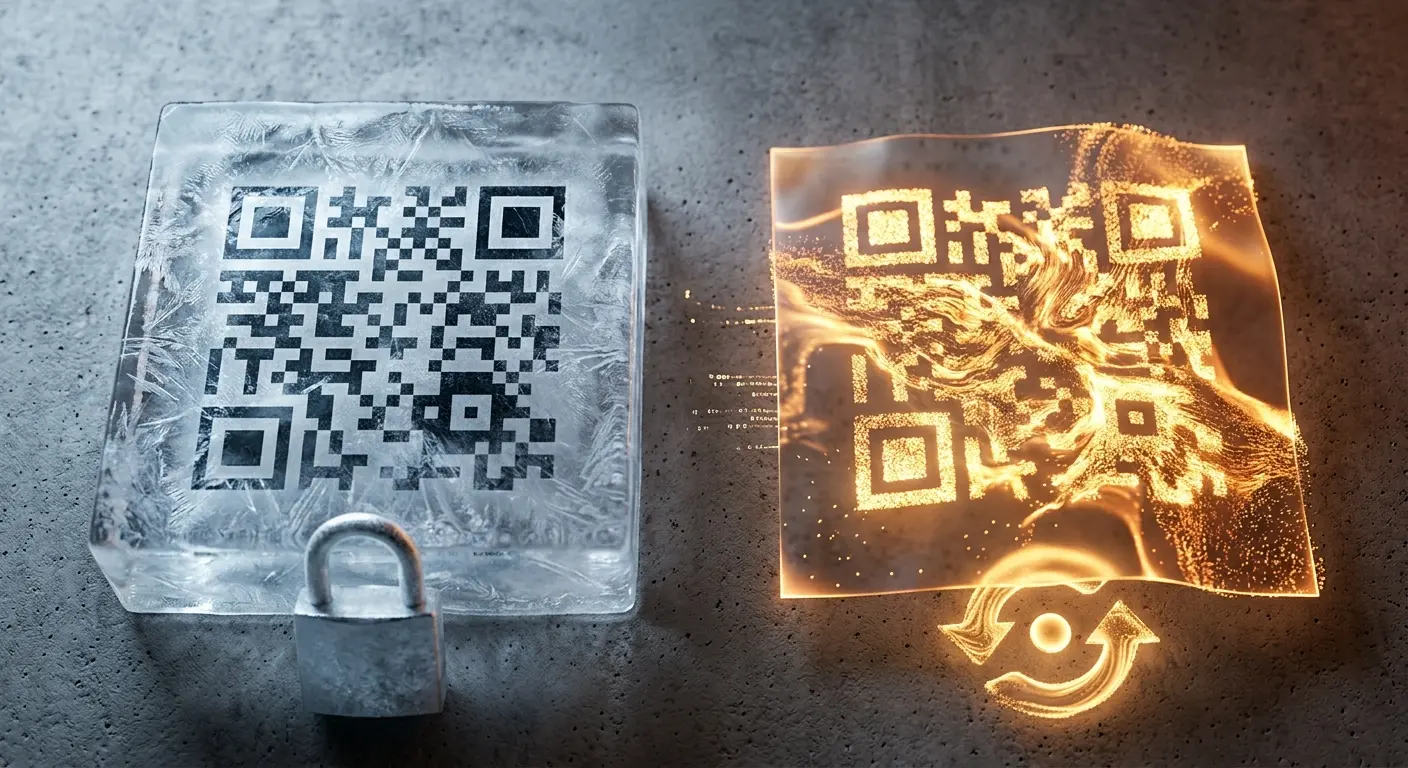
- Static QR codes: The destination URL is permanently embedded in the pattern. If there’s an error in the link, you’ll need to regenerate the code and destroy the print run.
- Dynamic QR codes: Only a short redirect URL is stored in the code. You can change the destination in the backend at any time—even if the flyer has already been printed.
Note: Dynamic QR codes protect against incorrect links but cannot resolve layout issues such as poor contrast or a missing margin.
SEO Checklist: QR Code Approval at a Glance
Go through this list before starting the print run:
- Scanned on at least two different smartphones (iOS & Android)?
- Destination URL and mobile view of the landing page fully checked?
- Has a test print been made at a 1:1 scale?
- Is there sufficient margin space (at least 4 modules)?
- Is sufficient contrast between the code and the background guaranteed?
- Has a scan test been performed on the final exported print file (PDF)?
- Have material properties (reflections, warping, scanning distance) been taken into account?
Frequently Asked Questions (FAQ)
What is the minimum size a QR code must be in print?
For small print media such as business cards or flyers, a minimum size of approximately 1.5 × 1.5 cm to 2 × 2 cm is recommended, provided the code contains only a small amount of data. For complex content or a longer scanning distance, the code must be scaled accordingly.
Why won’t my QR code scan anymore after exporting it as a PDF?
When exporting from graphics programs, vector graphics are sometimes converted to raster graphics or compressed. This causes the sharp edges of the modules to blur. Therefore, make sure to use a resolution of at least 300 dpi in the print area.
Can I correct a printed QR code after the fact?
This is only possible with a dynamic QR code. With dynamic codes, you can update the stored destination URL online at any time. With static QR codes, however, the link is permanently embedded in the code and cannot be changed.